
Prerequisite: connect Google or Microsoft
First, connect your Google or Microsoft account in Settings → Email accounts. This connection lets Cobalt sync your calendar and send emails from Cobalt — it is the prerequisite for transcription.Enable or disable transcription
Each user can fully enable or disable the bot in their meetings via the Record meetings option. When it is off, no transcription happens. It is always on by default.
Manage the bot meeting by meeting
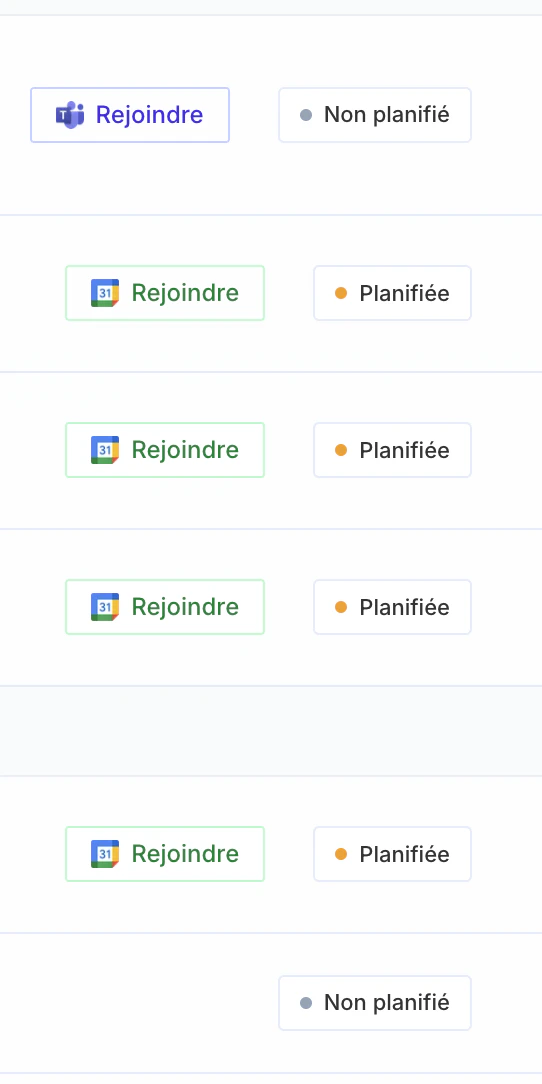
You can also decide, meeting by meeting, whether the bot should join. Each meeting shows a status:- Scheduled — the bot will join the meeting and transcribe it.
- Not scheduled — the bot won’t join. A meeting without a video link is automatically not scheduled.
Transcription enrichment and validation
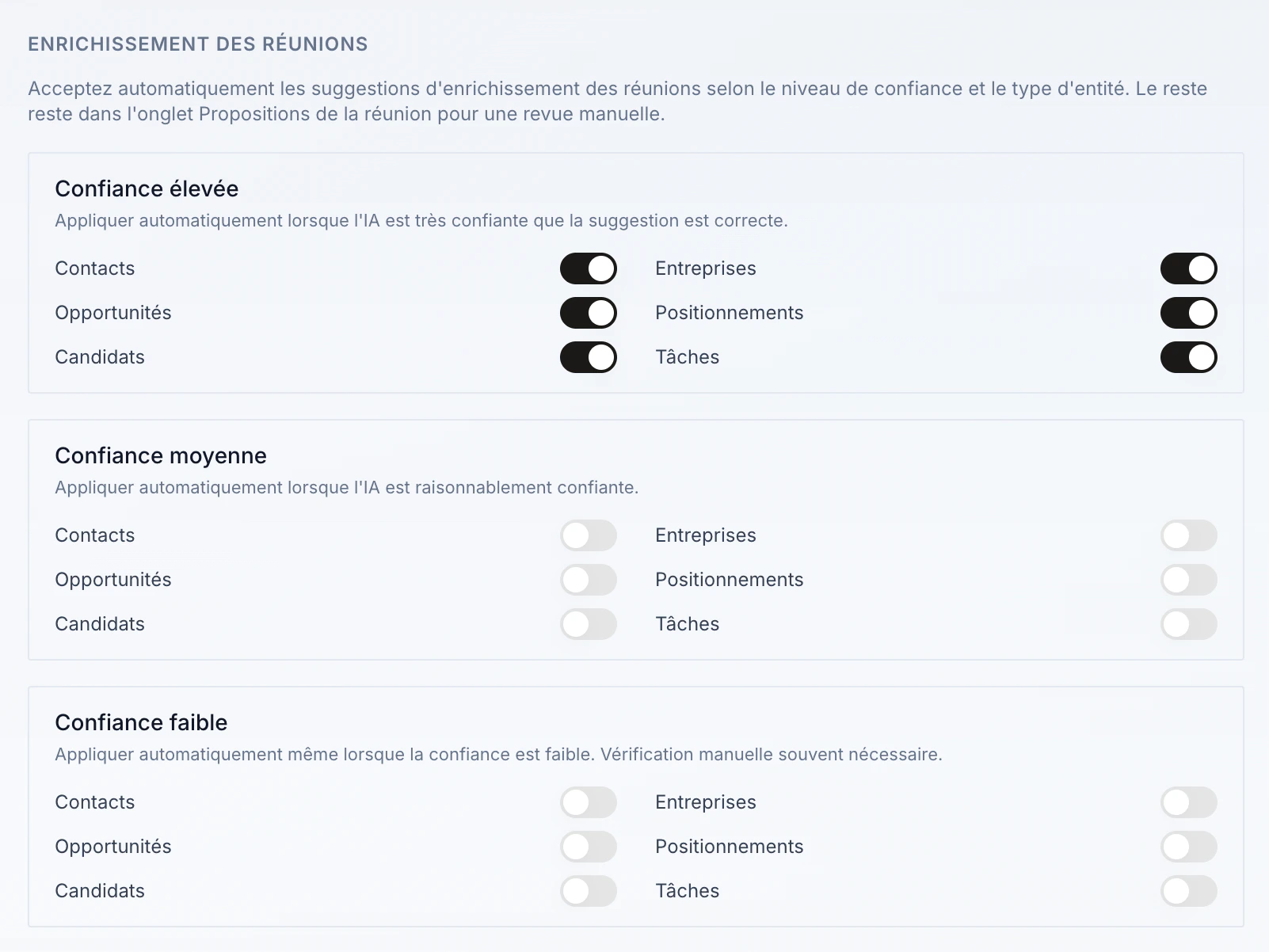
Transcription enrichment (updating records from detected information) can be applied automatically or left for manual validation, depending on the AI’s confidence level and the entity type. Go to your organization settings, Meeting enrichment section, and pick the settings that suit you. Three confidence levels are available — high, medium, low — and for each you enable automatic application per entity type (Contacts, Companies, Opportunities, Positionings, Candidates, Tasks). Everything else stays in the meeting’s Proposals tab for manual review.