

Task management
Automatic tasks
Automatic tasks are created by Cobalt on your behalf, from two sources:- a workflow — a manual-action block automatically creates the task;
- the transcription of a meeting or phone call.
- Context pulled from the conversation
- Suggested assignee based on who was responsible in the discussion
- Priority level: Urgent, High, Normal, or Low
- Suggested deadline based on any dates mentioned
Tasks created from meetings include a link back to the meeting transcript — click it to review the full context at any time.
Task board
Your tasks appear on a kanban board with four columns:
Drag tasks between columns to update their status instantly. Every task is linked to the relevant candidate, client, or project, so you always have the full context one click away.
Manual tasks
Manual tasks are actions you create yourself, like a to-do list (call a candidate, follow up with a client, prepare an interview…). Click New Task from the task board or from inside any candidate, client, or project record, then fill in the title, description, assignee, priority, and deadline. You can also add a reference (a client or a candidate) to give the task context — for example “call this client in 3 weeks” linked to the client’s name. The reference acts as a tag that tells you who the task is about.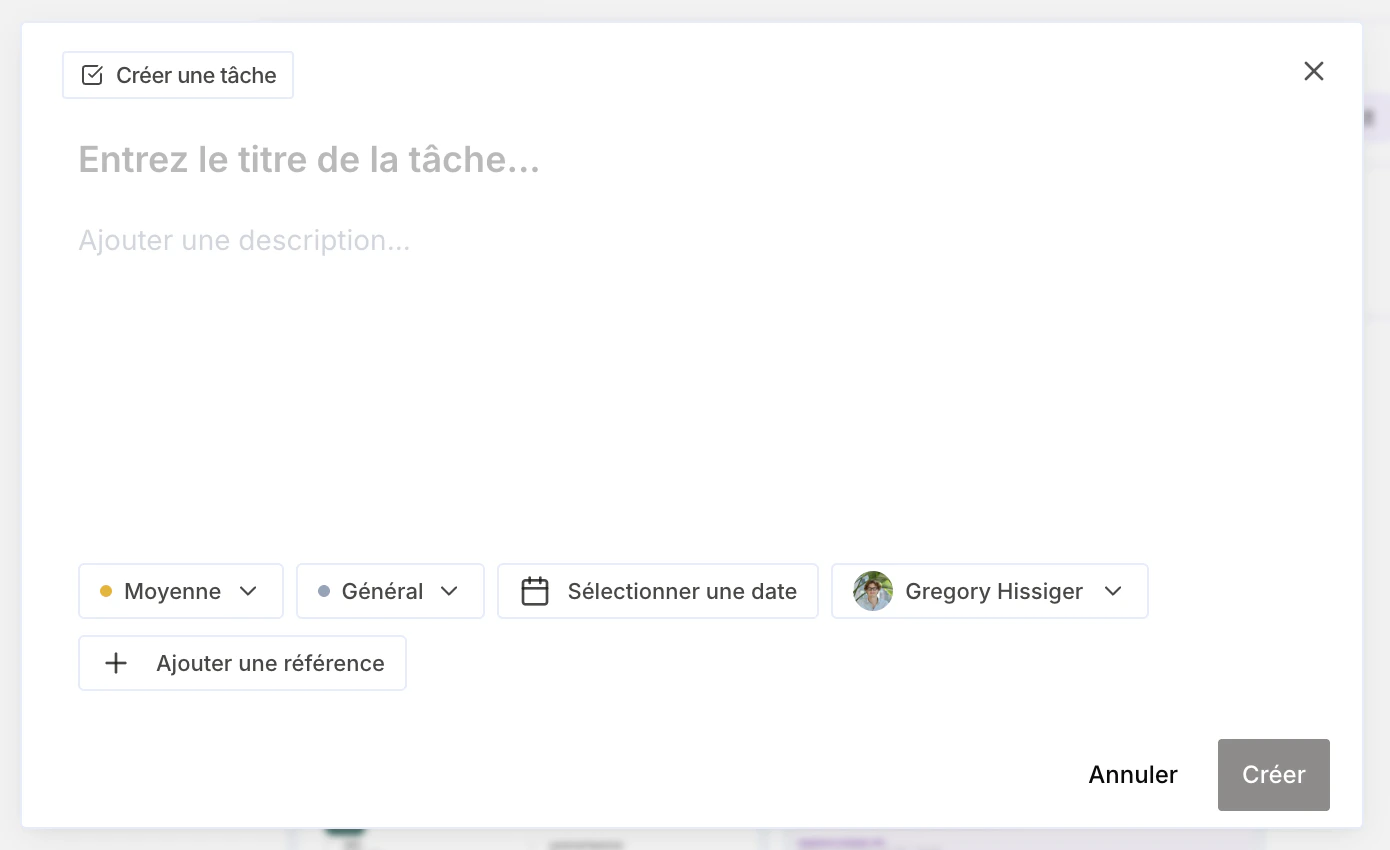
Filters and notifications
Use the filter bar to narrow your task board by:- Assignee — see only your tasks or a team member’s workload
- Priority — focus on Urgent or High priority items
- Deadline — surface overdue or upcoming tasks
- Source — filter by tasks created from meetings vs. calls vs. manually