

Capabilities unlocked
- Send and receive emails from inside Cobalt — your emails go out from your Gmail address, and replies land directly on the candidate’s Cobalt profile.
- Google Calendar sync — calendar events appear inside Cobalt so your pipeline always reflects your real schedule.
- Automatic Balt bot join — when a Google Meet link is detected on a calendar event, Balt joins the call automatically to transcribe it.
- Meeting transcription via Google Meet — transcripts and summaries are attached to the relevant candidate or contact record.
How to connect
1
Open personal settings
In Cobalt, go to Personal settings → Email accounts.
2
Start the connection
Click Sign in with Google.
3
Sign in and grant permissions
Sign in with your Google account and authorize access to Gmail, Calendar, and Meet when prompted.
4
Confirm the connection
Cobalt confirms the connection. You can now send emails from your Gmail address, and calendar sync is live.
5
Add your signature
To use your email signature in Cobalt, copy it manually and add it in your personal settings, Signature section.You can create multiple signatures and switch between them when sending an email. In workflows, the default signature (marked with a ★) is used.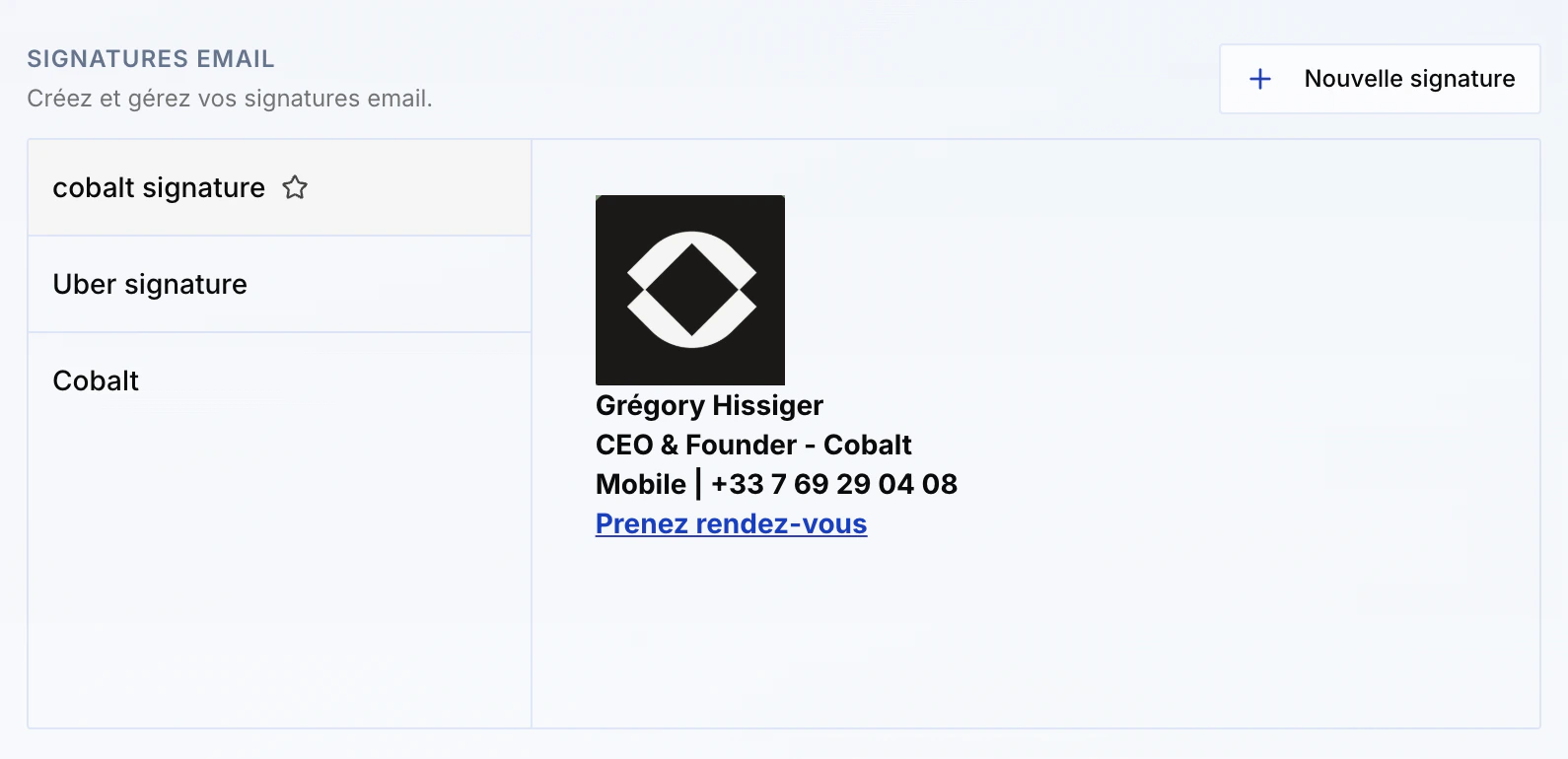
Good to know
- Each team member must connect their own account individually. Emails are sent from each person’s own email address.
- Meeting transcription requires calendar sync to be active: without it, Balt cannot join video calls automatically.