

Company profile
Your company profile is the foundation of your Cobalt workspace. To update it, go to Settings → Workspace.- Company name — appears in skills documents, email footers, and internal records.
- Logo — upload a PNG or SVG file. Cobalt uses your logo automatically in all generated skills documents and branded templates.
- Default language — sets the language for auto-generated content, email templates, and the Balt AI agent’s responses.
Roles and permissions
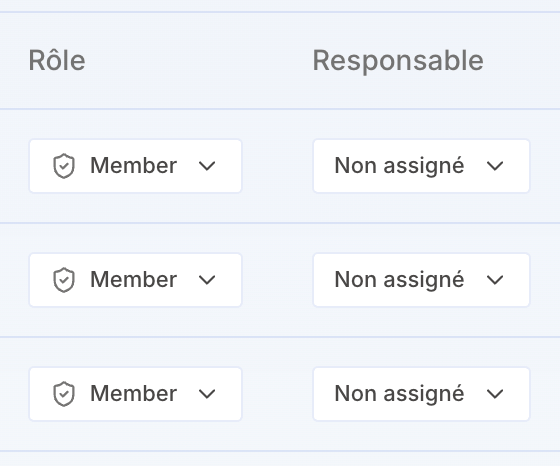
Manage your organization members’ roles and permissions from Settings → Roles & permissions. Three system roles are provided by default:- Owner — all permissions.
- Administrator — broad access to workspace management.
- Member — standard access to day-to-day features.
Create a custom role
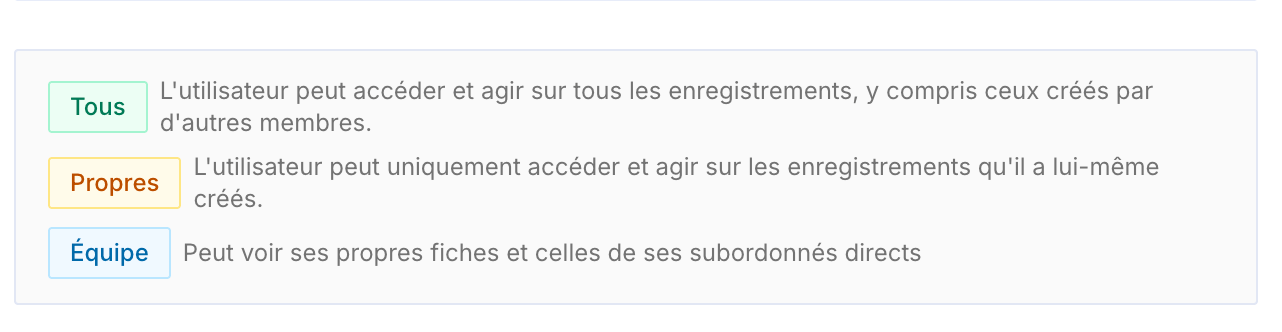
If needed, create a custom role (the New role button) to define permissions precisely across everything the application can do. Access scope- All — the user can access and act on all records, including those created by other members.
- Own — the user can only access and act on records they created themselves.
- Team — the user sees their own records and those of their direct reports.
- Invite members
- Remove members
- Edit member roles
- Edit the organization
- Manage integrations
- Manage resources
- Access candidates’ legal information
Skills document templates
Cobalt generates branded skills documents customized to your visual identity. To make sure every document looks right on the first export, configure your templates before you start generating documents. Go to Settings → Document Templates to:- Upload your logo — if you haven’t done so in your company profile, add it here.
- Set colors and fonts — choose your brand’s primary and secondary colors; select from available font families.
- Set a default template — the default is used whenever you generate a document without selecting a specific template.
Email connection
Connecting your email account lets Cobalt send outreach sequences on your behalf and route replies back to your Cobalt inbox. This connection is required to use multichannel sequences. To connect your email, go to Personal settings → Email accounts:- Gmail (Google Workspace) — click Connect Gmail and authorize access through Google’s standard OAuth flow. Cobalt only requests send and read permissions on your behalf. See Google Workspace for full details.
- Outlook (Microsoft 365) — click Connect Outlook and sign in with your Microsoft credentials. See Microsoft 365 for full details.
Each team member must connect their own email account individually. Admin-level email connections do not apply to other users.
Calendar sync
Syncing your calendar enables Cobalt’s AI agent, Balt, to join your meetings automatically and transcribe them in real time. After a call ends, Balt updates the relevant candidate or client record in your CRM with a summary and key action items. To connect your calendar, go to Personal settings → Email accounts:- Google Calendar — authorize through the Google OAuth flow. Balt detects Google Meet links in your calendar events and joins automatically.
- Microsoft Calendar — authorize through Microsoft. Balt joins Microsoft Teams meetings the same way.
Calendar sync is available on paid plans. Transcription and auto-CRM updates are included on all paid plans.
Importing existing data
Cobalt is most powerful when it starts with your existing candidate and client data. You can import from a CSV file or migrate directly from another ATS — and Cobalt’s team assists with migrations at no extra cost.CSV import
Export your data from your current tool as a CSV file, then go to Settings → Import → Upload CSV. Cobalt maps columns to the right fields and flags any rows that need attention before finalizing the import.ATS migration
If you’re moving from one of the following platforms, Cobalt handles the migration for you:
Contact Cobalt support to kick off a migration. The team stays available throughout the process.