> ## Documentation Index
> Fetch the complete documentation index at: https://docs.cobalt-ia.com/llms.txt
> Use this file to discover all available pages before exploring further.
# Microsoft 365 integration
> Connect Outlook, Microsoft Calendar, and Microsoft Teams to Cobalt to send emails, sync your calendar, and enable automatic meeting transcription.
## Capabilities unlocked
* **Send and receive emails from inside Cobalt** — your emails go out from your Outlook address via Microsoft 365, and replies appear directly on the candidate's Cobalt profile.
* **Microsoft Calendar sync** — calendar events appear inside Cobalt so your pipeline stays in sync with your schedule.
* **Automatic Balt bot join** — when a Teams meeting link is detected on a calendar event, Balt joins the call automatically to transcribe it.
* **Meeting transcription via Microsoft Teams** — transcripts and summaries are attached to the relevant candidate or contact record.
To learn more about transcription, see [Meeting transcription](/en/fonctionnalites/transcription).
## How to connect
In Cobalt, go to **Personal settings → Email accounts**.
Click **Sign in with Microsoft**.
Sign in with your Microsoft account and grant the requested permissions for **Outlook**, **Calendar**, and **Teams**.
Cobalt confirms the connection. You can now send emails from your Outlook address, and calendar sync is live.
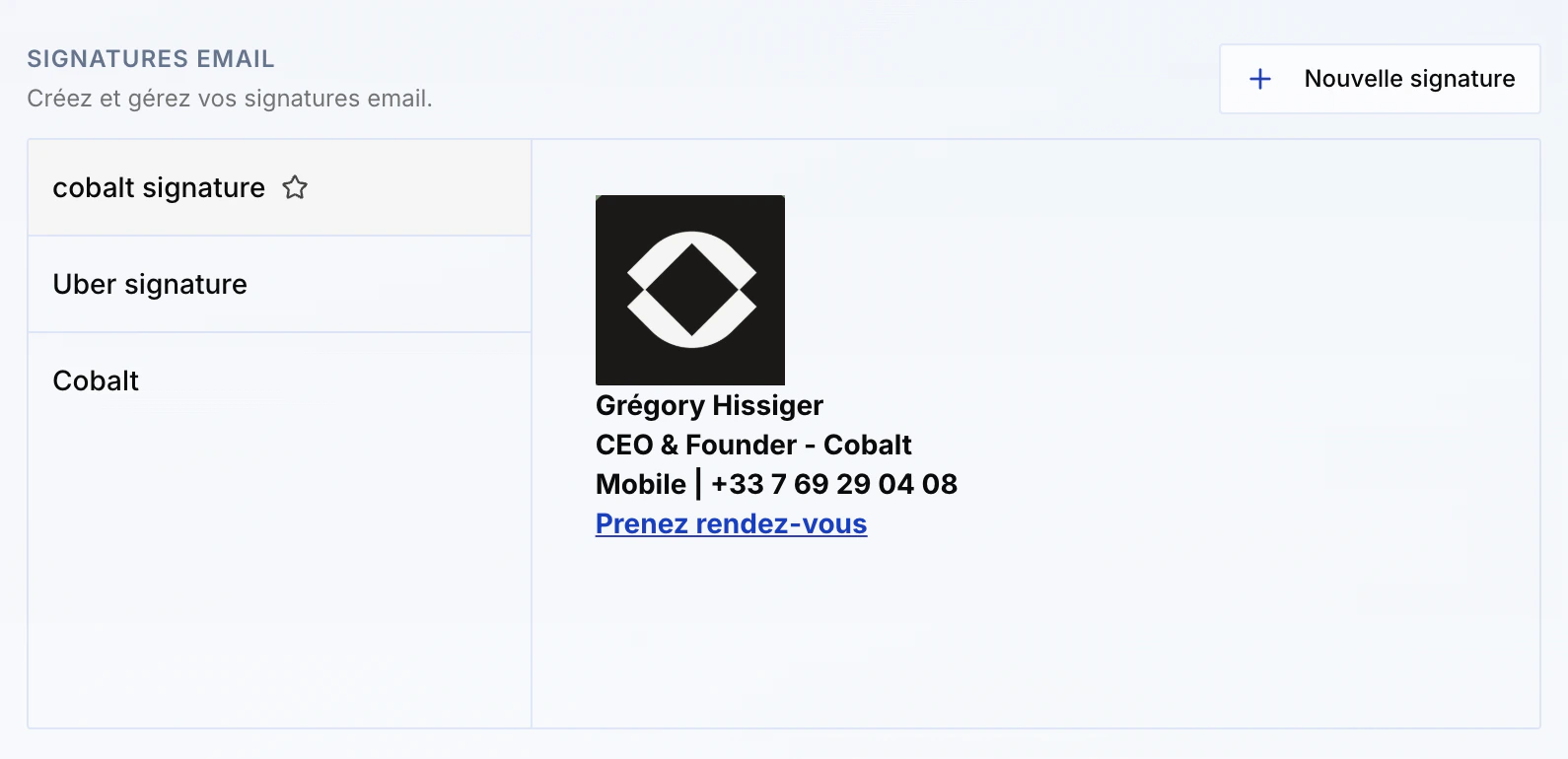
To use your email signature in Cobalt, copy it manually and add it in your **personal settings**, **Signature** section.
You can create **multiple signatures** and switch between them when sending an email. In **workflows**, the **default signature** (marked with a ★) is used.
 ## Good to know
* Each team member must connect their own account individually. Emails are sent from each person's own address via Microsoft 365.
* Meeting transcription requires calendar sync to be active: without it, Balt cannot join Teams meetings automatically.
## Connection and sync issues (Microsoft Entra)
When first connecting a Microsoft 365 account to Cobalt, some users see a message asking them to contact their administrator. This section explains why, and what to do depending on whether you're a user or an IT administrator.
### Why this message appears
Cobalt accesses mail and calendar through Microsoft Graph. In many organizations, this kind of access must be approved once by an administrator before users can connect their accounts. Until that approval happens, every user stays blocked on this message.
Approval is done once, by an administrator of the organization. It takes a few minutes. After that, each team member connects their own account without being blocked.
### You are a Cobalt user
This block can't be cleared from your own account. It must be lifted by a Microsoft 365 administrator in your organization (your IT department).
Forward them the following message:
```
Hi,
I use Cobalt and I need to connect my Microsoft 365 mailbox and calendar.
A message is asking me for an administrator's approval.
Could you authorize the Cobalt application for our organization?
The steps are described here: https://cobalt-ia.com/docs/connexion-microsoft-365
Thanks!
```
Once your administrator has granted approval, return to Cobalt and reconnect your Microsoft account. The message will be gone.
### You are an IT administrator
#### Prerequisite: your role
To authorize the application, you must hold one of these roles in Microsoft Entra:
* Global Administrator
* Privileged Role Administrator
* Cloud Application Administrator
Being an "administrator" in the business sense is not enough. Without one of these Entra roles, the approval won't actually be recorded and your users will stay blocked.
#### Recommended method: authorize Cobalt for the organization
This is the simplest and most targeted method. It authorizes Cobalt only, for all your users.
Connect your own Microsoft account in Cobalt. On the Microsoft consent screen, check the "Consent on behalf of your organization" box, then confirm.
Open this link in a browser where you're signed in with your administrator account:
```
https://login.microsoftonline.com/common/adminconsent?client_id=e7399ffc-a133-4d62-a200-98c6ebae38f5
```
Microsoft shows the list of permissions Cobalt requests (mail, calendar). Click "Accept".
The approval applies to the entire organization. Each team member can now connect their own Microsoft account in Cobalt, without being blocked.
The link also exists in a version targeted at a specific tenant, useful if you have multiple accounts: replace `common` with your tenant ID. You'll find it in Entra, on the Overview page, in the "Tenant ID" field.
```
https://login.microsoftonline.com/{tenant_id}/adminconsent?client_id=e7399ffc-a133-4d62-a200-98c6ebae38f5
```
#### Another option: open consent to verified publishers
Rather than authorizing Cobalt specifically, you can relax a global setting. Since Cobalt is a Microsoft-verified publisher, this lets users consent themselves.
In the Entra admin center (entra.microsoft.com): **Identity → Applications → Enterprise applications → Consent and permissions → User consent settings**. Allow users to consent, preferably with the option restricted to verified publishers.
This setting applies to all applications, not just Cobalt. If you'd rather stay targeted, keep the recommended method above.
#### If it doesn't work
Check in this order:
If the page stays stuck on "Redirecting...", reopen the consent link in a private browsing window and allow pop-ups for login.microsoftonline.com. It's often a simple cache or cookie issue.
Confirm you hold one of the three roles listed in the prerequisites. If not, ask a Global Administrator to perform the operation, or to temporarily assign you the Cloud Application Administrator role.
Security policies (multi-factor authentication, device or geographic restrictions) can silently block consent. Check in Entra, under **Security → Conditional Access**, and perform the operation from a compliant device or network.
If the web interface still doesn't respond, create the access from the command line:
```powershell theme={null}
Connect-MgGraph -TenantId "{tenant_id}" -Scopes "Application.ReadWrite.All"
New-MgServicePrincipal -AppId "e7399ffc-a133-4d62-a200-98c6ebae38f5"
```
### Once unblocked
Administrator approval lifts the block, but doesn't automatically connect everyone's mailboxes. Since sync happens per user, each team member then connects their own Microsoft account in Cobalt to sync their mail and calendar.
Need help? Email us at [support@cobalt-ia.com](mailto:support@cobalt-ia.com).
## Good to know
* Each team member must connect their own account individually. Emails are sent from each person's own address via Microsoft 365.
* Meeting transcription requires calendar sync to be active: without it, Balt cannot join Teams meetings automatically.
## Connection and sync issues (Microsoft Entra)
When first connecting a Microsoft 365 account to Cobalt, some users see a message asking them to contact their administrator. This section explains why, and what to do depending on whether you're a user or an IT administrator.
### Why this message appears
Cobalt accesses mail and calendar through Microsoft Graph. In many organizations, this kind of access must be approved once by an administrator before users can connect their accounts. Until that approval happens, every user stays blocked on this message.
Approval is done once, by an administrator of the organization. It takes a few minutes. After that, each team member connects their own account without being blocked.
### You are a Cobalt user
This block can't be cleared from your own account. It must be lifted by a Microsoft 365 administrator in your organization (your IT department).
Forward them the following message:
```
Hi,
I use Cobalt and I need to connect my Microsoft 365 mailbox and calendar.
A message is asking me for an administrator's approval.
Could you authorize the Cobalt application for our organization?
The steps are described here: https://cobalt-ia.com/docs/connexion-microsoft-365
Thanks!
```
Once your administrator has granted approval, return to Cobalt and reconnect your Microsoft account. The message will be gone.
### You are an IT administrator
#### Prerequisite: your role
To authorize the application, you must hold one of these roles in Microsoft Entra:
* Global Administrator
* Privileged Role Administrator
* Cloud Application Administrator
Being an "administrator" in the business sense is not enough. Without one of these Entra roles, the approval won't actually be recorded and your users will stay blocked.
#### Recommended method: authorize Cobalt for the organization
This is the simplest and most targeted method. It authorizes Cobalt only, for all your users.
Connect your own Microsoft account in Cobalt. On the Microsoft consent screen, check the "Consent on behalf of your organization" box, then confirm.
Open this link in a browser where you're signed in with your administrator account:
```
https://login.microsoftonline.com/common/adminconsent?client_id=e7399ffc-a133-4d62-a200-98c6ebae38f5
```
Microsoft shows the list of permissions Cobalt requests (mail, calendar). Click "Accept".
The approval applies to the entire organization. Each team member can now connect their own Microsoft account in Cobalt, without being blocked.
The link also exists in a version targeted at a specific tenant, useful if you have multiple accounts: replace `common` with your tenant ID. You'll find it in Entra, on the Overview page, in the "Tenant ID" field.
```
https://login.microsoftonline.com/{tenant_id}/adminconsent?client_id=e7399ffc-a133-4d62-a200-98c6ebae38f5
```
#### Another option: open consent to verified publishers
Rather than authorizing Cobalt specifically, you can relax a global setting. Since Cobalt is a Microsoft-verified publisher, this lets users consent themselves.
In the Entra admin center (entra.microsoft.com): **Identity → Applications → Enterprise applications → Consent and permissions → User consent settings**. Allow users to consent, preferably with the option restricted to verified publishers.
This setting applies to all applications, not just Cobalt. If you'd rather stay targeted, keep the recommended method above.
#### If it doesn't work
Check in this order:
If the page stays stuck on "Redirecting...", reopen the consent link in a private browsing window and allow pop-ups for login.microsoftonline.com. It's often a simple cache or cookie issue.
Confirm you hold one of the three roles listed in the prerequisites. If not, ask a Global Administrator to perform the operation, or to temporarily assign you the Cloud Application Administrator role.
Security policies (multi-factor authentication, device or geographic restrictions) can silently block consent. Check in Entra, under **Security → Conditional Access**, and perform the operation from a compliant device or network.
If the web interface still doesn't respond, create the access from the command line:
```powershell theme={null}
Connect-MgGraph -TenantId "{tenant_id}" -Scopes "Application.ReadWrite.All"
New-MgServicePrincipal -AppId "e7399ffc-a133-4d62-a200-98c6ebae38f5"
```
### Once unblocked
Administrator approval lifts the block, but doesn't automatically connect everyone's mailboxes. Since sync happens per user, each team member then connects their own Microsoft account in Cobalt to sync their mail and calendar.
Need help? Email us at [support@cobalt-ia.com](mailto:support@cobalt-ia.com).