> ## Documentation Index
> Fetch the complete documentation index at: https://docs.cobalt-ia.com/llms.txt
> Use this file to discover all available pages before exploring further.
# Chrome Extension
> Install the Cobalt Chrome Extension to import any LinkedIn profile in one click — contact details, skills, and experience sync instantly to your CRM.
The Cobalt Chrome Extension turns any LinkedIn profile page into a one-click import. Instead of copying names, job titles, and contact details by hand, you click the Cobalt icon, review what was captured, and add the candidate to your CRM in seconds. The extension is available with any Cobalt plan and requires only the Chrome browser.
 ## Install the extension
In Cobalt, go to **Personal settings**.
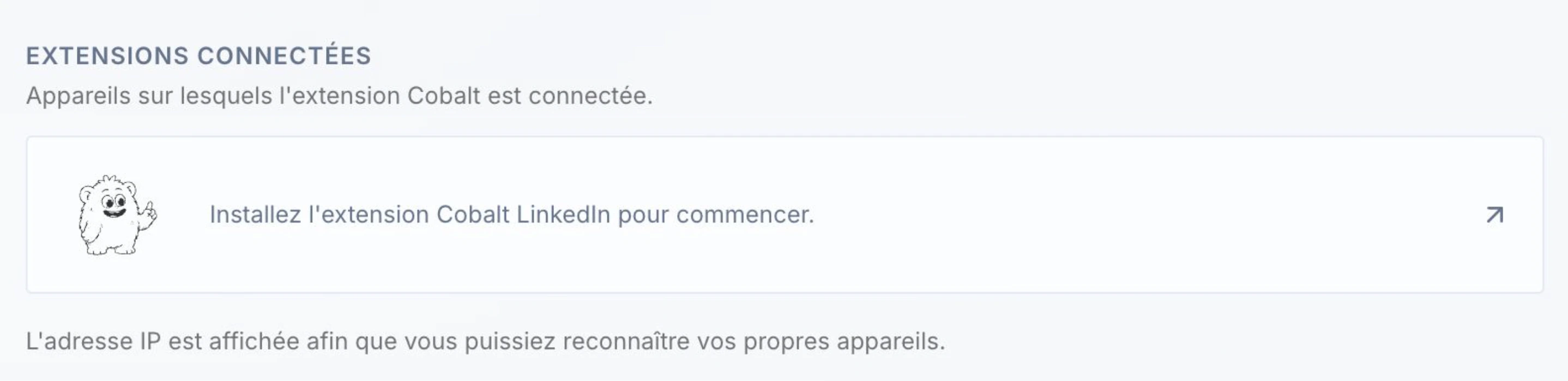
Click **Install from Chrome Web Store**. You are taken directly to the extension's listing — click **Add to Chrome** to install.
After installation, the Cobalt icon appears in your Chrome toolbar. If you don't see it, click the puzzle-piece Extensions menu and pin Cobalt.
Click the Cobalt icon and sign in with your Cobalt credentials to link the extension to your account.
## Import a LinkedIn profile
Open any LinkedIn profile page in Chrome.
Click the Cobalt icon in your Chrome toolbar. The extension reads the page and extracts the candidate's data immediately.
The extension displays the extracted information — contact details, experiences, education, and skills — so you can verify before importing.
Click **Add to Cobalt**, then choose an existing list or create a new one. The profile syncs to your CRM instantly with no copy-paste required.
## What data is captured
The extension extracts everything visible on the LinkedIn profile and lets you enrich what isn't:
* **Contact details** — email address and phone number (**optional** enrichment, on click, after import)
* **Work experiences and dates** — full employment history with company names and durations
* **Education and certifications** — degrees, institutions, and professional certifications
* **Skills and keywords** — the skills listed on the profile, ready for AI-powered matching in Cobalt
* **LinkedIn profile URL** — stored on the candidate record for easy reference
Email and phone are not always visible on LinkedIn profiles. You can enrich them in one click after import, using Cobalt's cascade enrichment engine. To learn more, see [Enrichment](/en/fonctionnalites/enrichissement).
Only import profiles for candidates you are actively considering. Cobalt imports one profile at a time based on your explicit action — no bulk automated scraping.
## Install the extension
In Cobalt, go to **Personal settings**.
Click **Install from Chrome Web Store**. You are taken directly to the extension's listing — click **Add to Chrome** to install.
After installation, the Cobalt icon appears in your Chrome toolbar. If you don't see it, click the puzzle-piece Extensions menu and pin Cobalt.
Click the Cobalt icon and sign in with your Cobalt credentials to link the extension to your account.
## Import a LinkedIn profile
Open any LinkedIn profile page in Chrome.
Click the Cobalt icon in your Chrome toolbar. The extension reads the page and extracts the candidate's data immediately.
The extension displays the extracted information — contact details, experiences, education, and skills — so you can verify before importing.
Click **Add to Cobalt**, then choose an existing list or create a new one. The profile syncs to your CRM instantly with no copy-paste required.
## What data is captured
The extension extracts everything visible on the LinkedIn profile and lets you enrich what isn't:
* **Contact details** — email address and phone number (**optional** enrichment, on click, after import)
* **Work experiences and dates** — full employment history with company names and durations
* **Education and certifications** — degrees, institutions, and professional certifications
* **Skills and keywords** — the skills listed on the profile, ready for AI-powered matching in Cobalt
* **LinkedIn profile URL** — stored on the candidate record for easy reference
Email and phone are not always visible on LinkedIn profiles. You can enrich them in one click after import, using Cobalt's cascade enrichment engine. To learn more, see [Enrichment](/en/fonctionnalites/enrichissement).
Only import profiles for candidates you are actively considering. Cobalt imports one profile at a time based on your explicit action — no bulk automated scraping.