> ## Documentation Index
> Fetch the complete documentation index at: https://docs.cobalt-ia.com/llms.txt
> Use this file to discover all available pages before exploring further.
# Meeting & call transcription
> The Balt agent joins your video meetings and calls, transcribes the conversation, extracts key data, and updates the candidate profile automatically.
Every interview contains information your CRM needs — skills, availability, salary expectations, next steps — but capturing it manually breaks your focus mid-call. Cobalt's Balt agent joins your meetings automatically, transcribes the conversation, extracts structured candidate data, and updates the profile before you have even written your follow-up email.
## How it works
Link your Google Calendar or Microsoft Calendar in Cobalt's settings. This is a one-time setup. Once connected, Balt monitors your scheduled meetings and joins automatically — no need to paste links or start a recording manually.
When your interview starts, Balt joins as a visible participant in Google Meet, Microsoft Teams, or Zoom. The candidate can see Balt in the participant list, so they are always aware that the meeting is being transcribed.
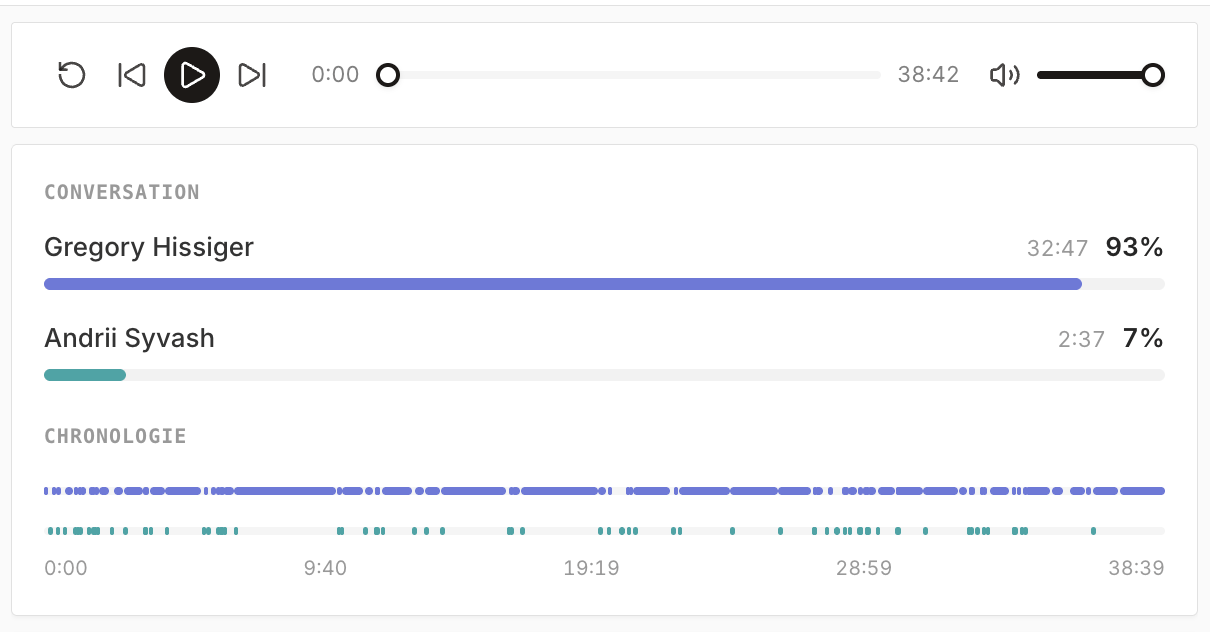
Balt transcribes the conversation continuously. Transcription works for video calls and phone calls alike, and handles mixed-language conversations — common when interviewing candidates across the French and international market.
Immediately after the meeting ends, Cobalt produces a structured summary: key topics covered, decisions made, candidate responses to standard interview questions, and action items with owners. The transcription page has been redesigned: the AI summary now **prioritizes elements** based on their importance, for a faster read.
Skills and competencies mentioned, availability and preferred start date, salary expectations (daily rate or annual package), motivations, and next steps are all extracted and added directly to the candidate's Cobalt profile. No manual data entry — the record is complete before your next meeting begins.
## Use case per meeting type
When **creating a meeting**, choose a **use case**: **candidate**, **client**, **qualification**, or **internal**. Each use case has **sub-use cases** (dedicated statuses) — for example, for a candidate: **E1**, **E2**, **qualification prep**…
This use case lets Cobalt **automatically route** the workflow triggered by the transcription to the right continuation — see [Workflow templates by meeting use case](/en/fonctionnalites/creer-premier-workflow#workflow-templates-by-meeting-use-case).
If a meeting is created from **Outlook**, the use case is not filled in automatically: a **warning** is shown on the meeting in the calendar. Fill it in manually, otherwise the workflow won't be able to route correctly to the right continuation.
## What Cobalt extracts from every meeting
* **Technical skills and competencies** — technologies, tools, methodologies mentioned during the interview
* **Availability and preferred start date** — notice period, earliest available date, preferred contract type
* **Salary expectations** — daily rate (TJM) or annual package (CTC), as stated by the candidate
* **Motivations and preferences** — role preferences, remote work expectations, sector interests
* **Action items and next steps** — follow-ups agreed during the call, with responsible parties noted
* **Full structured summary** — a complete, readable record of the interview ready to share with your team or a client
## Ask Balt about past meetings
At any point in Cobalt, you can query Balt about past interactions. Before a follow-up call, ask *"What did we discuss in the last interview with Marie Dupont?"* — Balt returns a context summary drawn from the transcription. Before a client meeting, ask for a candidate's key points from their last interview. Balt surfaces the right context exactly when you need it.
## Share summaries with your team and clients
Meeting summaries and transcripts are accessible to all team members with access to the candidate record. You can also share summaries externally — for example, sending interview notes to a client for shortlist feedback — directly from the candidate profile.
**Candidate transparency:** Balt appears as a named, visible participant in every meeting. Candidates are always informed that the session is being transcribed — there are no hidden recordings.
## Supported platforms and languages
| Feature | Details |
| --------------- | ------------------------------------------------------ |
| Video platforms | Google Meet, Microsoft Teams, Zoom |
| Audio | Phone calls |
| Languages | Multiple languages supported `[TO CONFIRM: full list]` |
## Plan availability
| Plan | Meeting transcription |
| ---------- | --------------------- |
| Free | Not included |
| Core | Unlimited |
| Copilot | Unlimited |
| Enterprise | Unlimited |
Transcription requires a connected calendar integration. Set this up in **Personal settings → Email accounts** before your first meeting.
## Frequently asked questions
Yes. Balt appears as a named, visible participant in the participant list. There are no hidden recordings.
Yes. In combination with the [VoIP telephony](/en/fonctionnalites/telephonie-voip) add-on, phone calls made via Cobalt are also transcribed automatically.
Yes. The transcription is accessible from the candidate's profile and can be edited manually if needed.
Yes. All data is processed on European infrastructure (hosted in France) and protected with end-to-end encryption. Cobalt provides a Data Processing Agreement (DPA) on request.
 ## Use case per meeting type
When **creating a meeting**, choose a **use case**: **candidate**, **client**, **qualification**, or **internal**. Each use case has **sub-use cases** (dedicated statuses) — for example, for a candidate: **E1**, **E2**, **qualification prep**…
This use case lets Cobalt **automatically route** the workflow triggered by the transcription to the right continuation — see [Workflow templates by meeting use case](/en/fonctionnalites/creer-premier-workflow#workflow-templates-by-meeting-use-case).
## Use case per meeting type
When **creating a meeting**, choose a **use case**: **candidate**, **client**, **qualification**, or **internal**. Each use case has **sub-use cases** (dedicated statuses) — for example, for a candidate: **E1**, **E2**, **qualification prep**…
This use case lets Cobalt **automatically route** the workflow triggered by the transcription to the right continuation — see [Workflow templates by meeting use case](/en/fonctionnalites/creer-premier-workflow#workflow-templates-by-meeting-use-case).
