> ## Documentation Index
> Fetch the complete documentation index at: https://docs.cobalt-ia.com/llms.txt
> Use this file to discover all available pages before exploring further.
# Transcription settings
> Enable meeting and call transcription, manage the bot meeting by meeting, and configure enrichment and its validation.
This page explains how to enable transcription and adjust its behavior.
## Prerequisite: connect Google or Microsoft
First, connect your **Google** or **Microsoft** account in **Settings → Email accounts**. This connection lets Cobalt **sync your calendar** and **send emails** from Cobalt — it is the prerequisite for transcription.
## Enable or disable transcription
Each user can **fully enable or disable the bot** in their meetings via the **Record meetings** option. When it is off, no transcription happens. It is **always on by default**.
 ## Manage the bot meeting by meeting
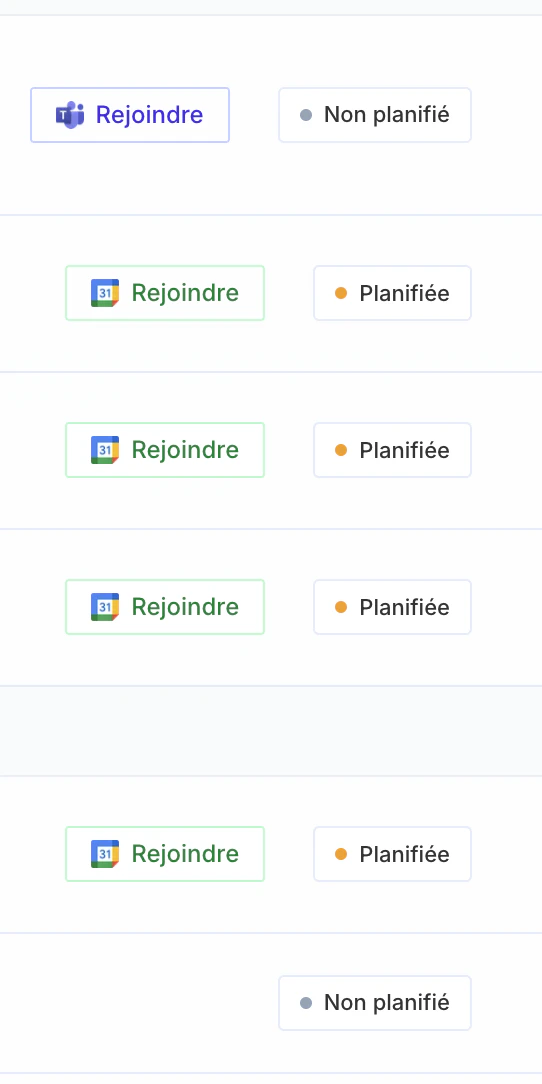
You can also decide, meeting by meeting, whether the bot should join. Each meeting shows a status:
* **Scheduled** — the bot will join the meeting and transcribe it.
* **Not scheduled** — the bot won't join. A meeting without a video link is automatically **not scheduled**.
## Manage the bot meeting by meeting
You can also decide, meeting by meeting, whether the bot should join. Each meeting shows a status:
* **Scheduled** — the bot will join the meeting and transcribe it.
* **Not scheduled** — the bot won't join. A meeting without a video link is automatically **not scheduled**.
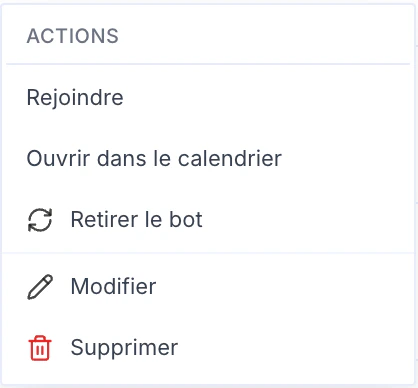
 To **unschedule** a meeting (remove the bot), open the meeting's **...** menu and click **Remove the bot**.
 ## Transcription enrichment and validation
Transcription enrichment (updating records from detected information) can be applied **automatically** or left for **manual validation**, depending on the AI's **confidence level** and the **entity type**.
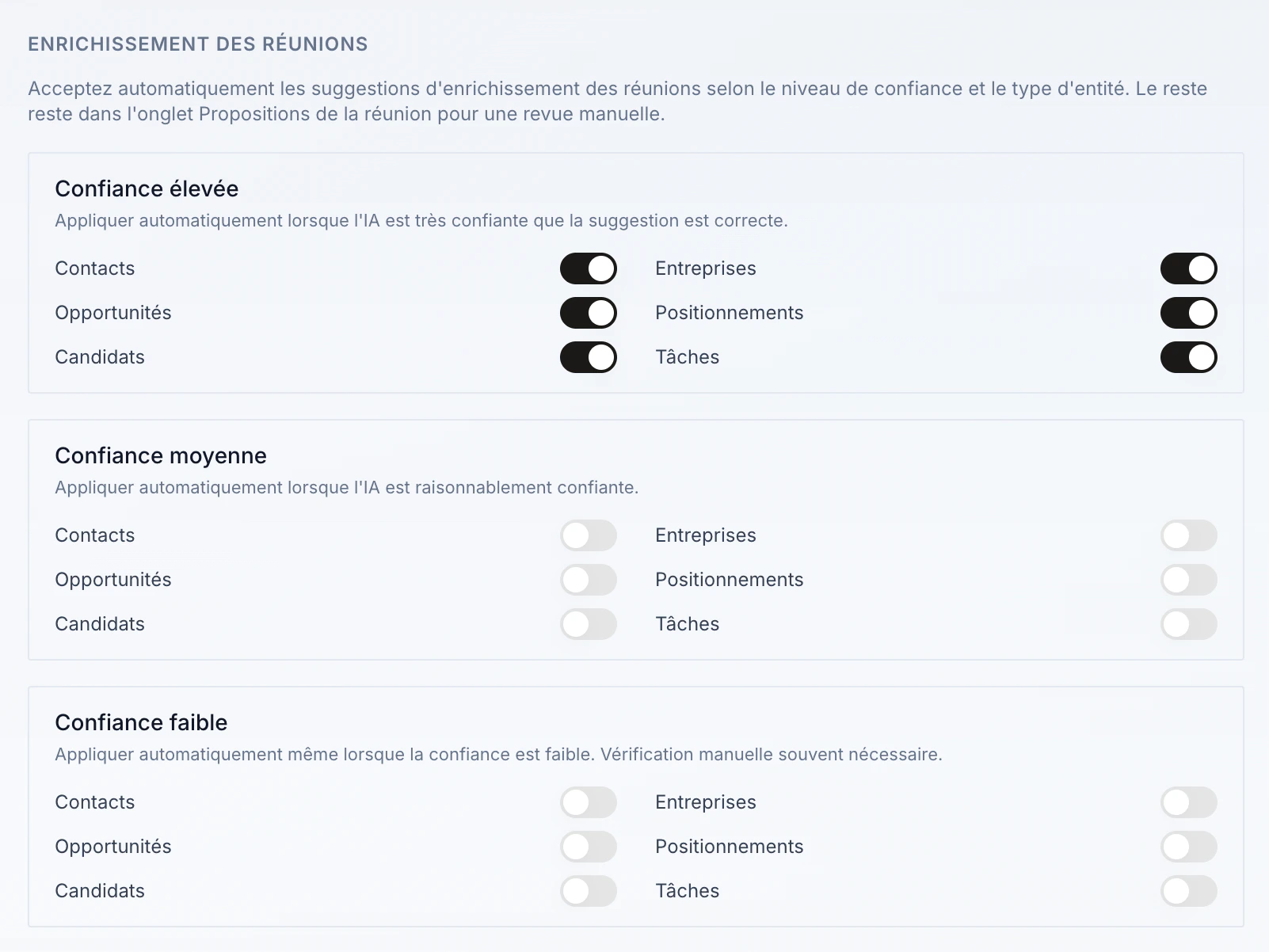
Go to your **organization settings**, **Meeting enrichment** section, and pick the settings that suit you. Three confidence levels are available — **high**, **medium**, **low** — and for each you enable automatic application per entity type (Contacts, Companies, Opportunities, Positionings, Candidates, Tasks). Everything else stays in the meeting's **Proposals** tab for manual review.
## Transcription enrichment and validation
Transcription enrichment (updating records from detected information) can be applied **automatically** or left for **manual validation**, depending on the AI's **confidence level** and the **entity type**.
Go to your **organization settings**, **Meeting enrichment** section, and pick the settings that suit you. Three confidence levels are available — **high**, **medium**, **low** — and for each you enable automatic application per entity type (Contacts, Companies, Opportunities, Positionings, Candidates, Tasks). Everything else stays in the meeting's **Proposals** tab for manual review.