> ## Documentation Index
> Fetch the complete documentation index at: https://docs.cobalt-ia.com/llms.txt
> Use this file to discover all available pages before exploring further.
# Projects
> What projects are in Cobalt: creation by use case, available views, attachments, and permissions.
**Projects** structure your work in Cobalt. Each project groups the records and actions tied to a specific goal — a need to fill, a consultant to reposition, an account to grow, and so on.
## Create a project
You can create a project in two ways:
* From the **Projects page**, using the **New project** button.
* From the **People Search Engine**, when you want to **save people** you've sourced or prospected into a project.
When creating it, enter a **name** and a **use case**:
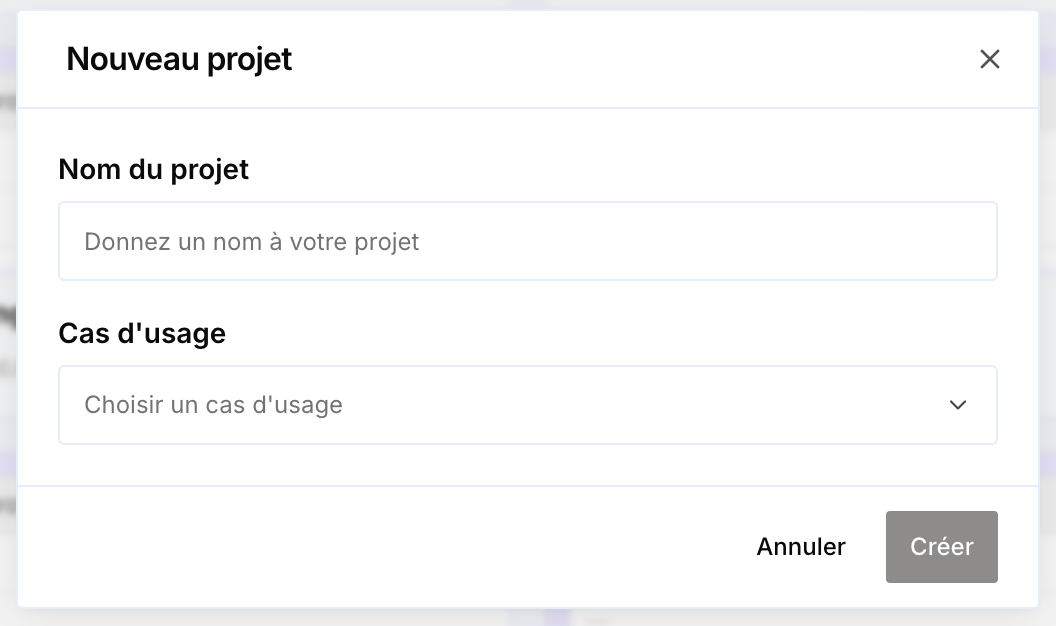 Depending on the **use case** you pick, Cobalt will ask for **different information** and adapt the project's default view:
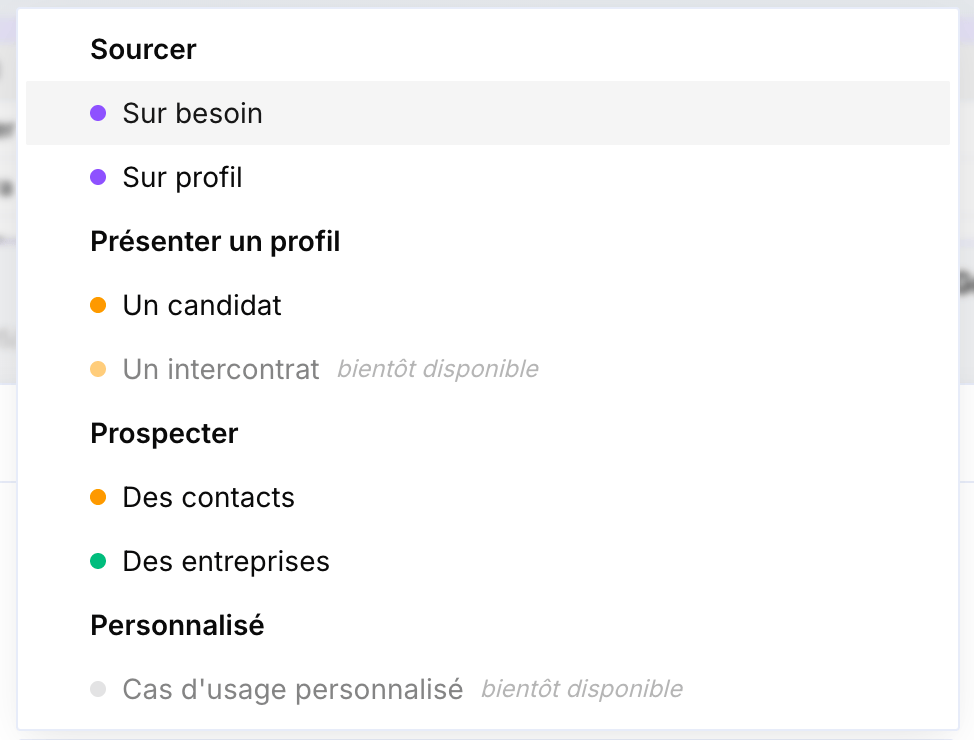 ## By use case
**Source**
Source candidates to fill a client need.
Source continuously for a profile or sector, without a specific need.
**Present a profile**
Proactively push a profile to your clients.
Reposition a consultant who is between assignments. *(coming soon)*
**Prospect**
Identify the right decision-makers to contact.
Discover new companies to approach.
A **custom** use case will also be available soon.
## Views
A project can be displayed in three views:
* **Cards** — card layout.
* **Kanban** — columns by status. This is the **default for sourcing projects**.
* **Excel** — row-by-row table. This is the **default for prospecting projects**.
## Project variables
Every project has **variables** — the columns of the Excel view — that you can reuse, for example when drafting an email.
* Alongside **Full name**, two default variables are available: **First name** and **Last name**, to insert only the first name, only the last name, or both.
* You can create your **own variables**, on the fly, without depending on Cobalt's default variables — for example a **Title (Mr/Ms)** column.
When drafting an email, a **Project** variable type lets you insert any project column, including the ones you created.
## By use case
**Source**
Source candidates to fill a client need.
Source continuously for a profile or sector, without a specific need.
**Present a profile**
Proactively push a profile to your clients.
Reposition a consultant who is between assignments. *(coming soon)*
**Prospect**
Identify the right decision-makers to contact.
Discover new companies to approach.
A **custom** use case will also be available soon.
## Views
A project can be displayed in three views:
* **Cards** — card layout.
* **Kanban** — columns by status. This is the **default for sourcing projects**.
* **Excel** — row-by-row table. This is the **default for prospecting projects**.
## Project variables
Every project has **variables** — the columns of the Excel view — that you can reuse, for example when drafting an email.
* Alongside **Full name**, two default variables are available: **First name** and **Last name**, to insert only the first name, only the last name, or both.
* You can create your **own variables**, on the fly, without depending on Cobalt's default variables — for example a **Title (Mr/Ms)** column.
When drafting an email, a **Project** variable type lets you insert any project column, including the ones you created.
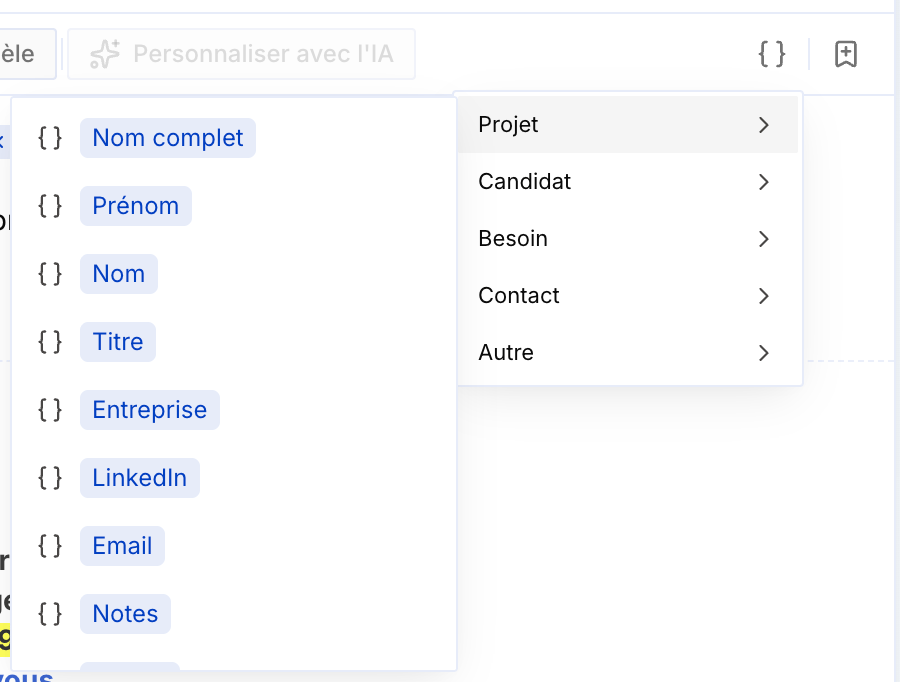 Adding new variables (new columns) is only possible from the **Excel view**.
## Project status
Each project has an **Active** or **Archived** status. Active projects are the ongoing ones — potentially worth following. Once a project is finalized, **archive it**: it no longer appears by default in the projects list, keeping the page free of projects you no longer use.
## Filters
You can **filter projects by type, by member, and by company**. Handy, for example, in a weekly meeting: filter by member to review everyone's business actions for the past week.
Adding new variables (new columns) is only possible from the **Excel view**.
## Project status
Each project has an **Active** or **Archived** status. Active projects are the ongoing ones — potentially worth following. Once a project is finalized, **archive it**: it no longer appears by default in the projects list, keeping the page free of projects you no longer use.
## Filters
You can **filter projects by type, by member, and by company**. Handy, for example, in a weekly meeting: filter by member to review everyone's business actions for the past week.
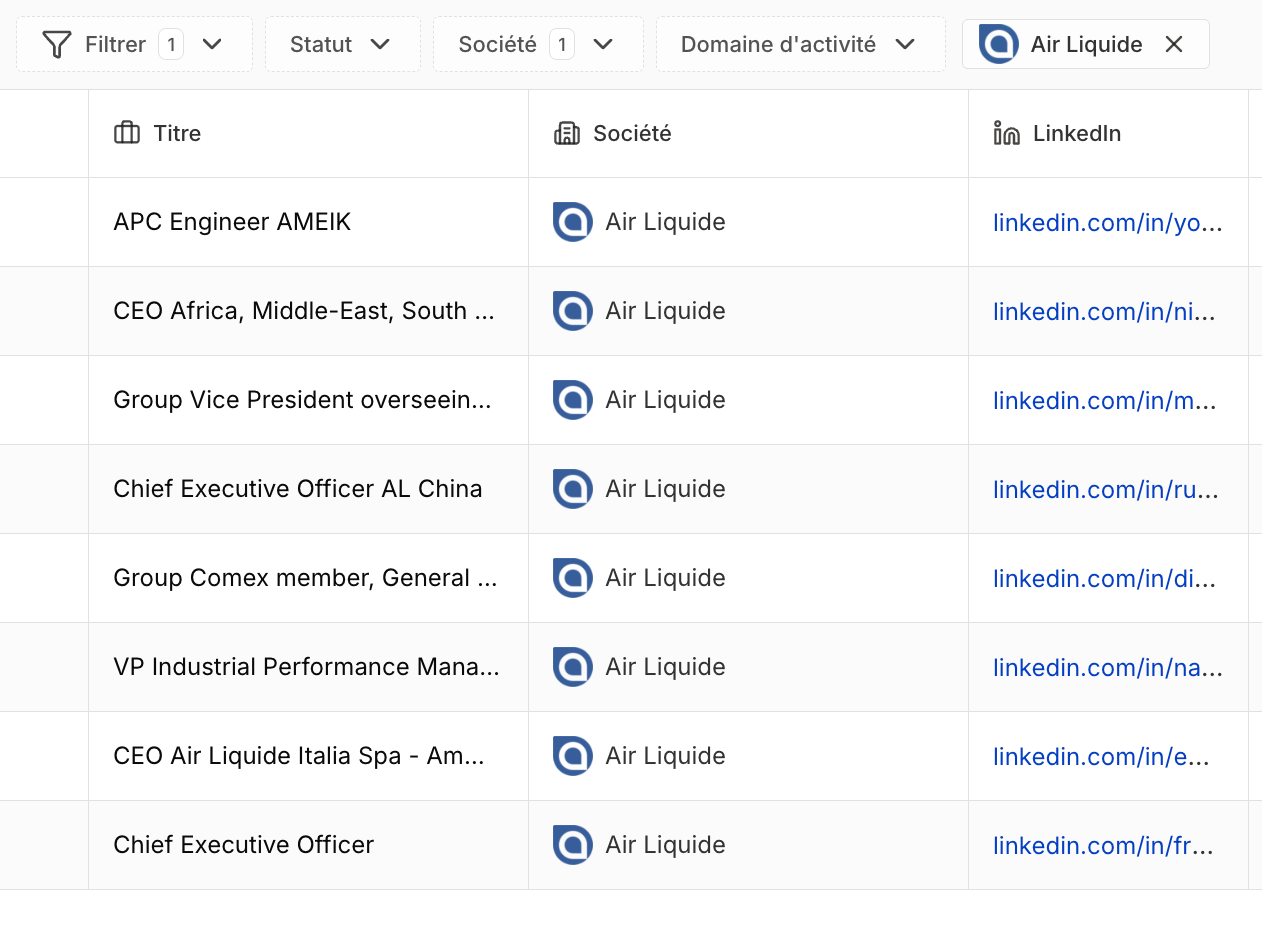 The Excel view's columns support **ascending and descending sort**, as well as **link support** — URLs (LinkedIn, job postings, etc.) are directly clickable.
## Send a message
From a project's **list of people**, you can **send a message**:
* **Manually**, straight from the project.
* **Automatically** via [workflows](/en/fonctionnalites/creer-premier-workflow) *(coming soon)*.
For now, sending is **email only** — multichannel sending is not available yet.
## Follow-up
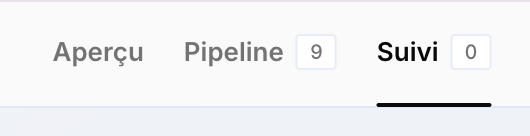
A project's **Follow-up** tab lets you **track exchanges** with candidates and prospects, **follow up manually**, and access a **multichannel inbox** covering **email, LinkedIn, and WhatsApp**.
The Excel view's columns support **ascending and descending sort**, as well as **link support** — URLs (LinkedIn, job postings, etc.) are directly clickable.
## Send a message
From a project's **list of people**, you can **send a message**:
* **Manually**, straight from the project.
* **Automatically** via [workflows](/en/fonctionnalites/creer-premier-workflow) *(coming soon)*.
For now, sending is **email only** — multichannel sending is not available yet.
## Follow-up
A project's **Follow-up** tab lets you **track exchanges** with candidates and prospects, **follow up manually**, and access a **multichannel inbox** covering **email, LinkedIn, and WhatsApp**.
 **Sent emails are stored** and also added to the **Conversations** tabs of candidates and clients, for better follow-up and outreach tracking.
## Edit a record
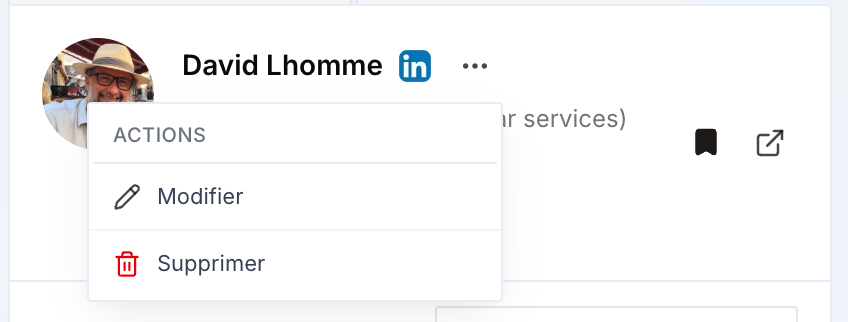
From a project's sidebar, you can **edit the first and last name** of a candidate or prospect: click the **three dots** next to the name, then **Edit**.
**Sent emails are stored** and also added to the **Conversations** tabs of candidates and clients, for better follow-up and outreach tracking.
## Edit a record
From a project's sidebar, you can **edit the first and last name** of a candidate or prospect: click the **three dots** next to the name, then **Edit**.
 ## Context on the person you're dealing with
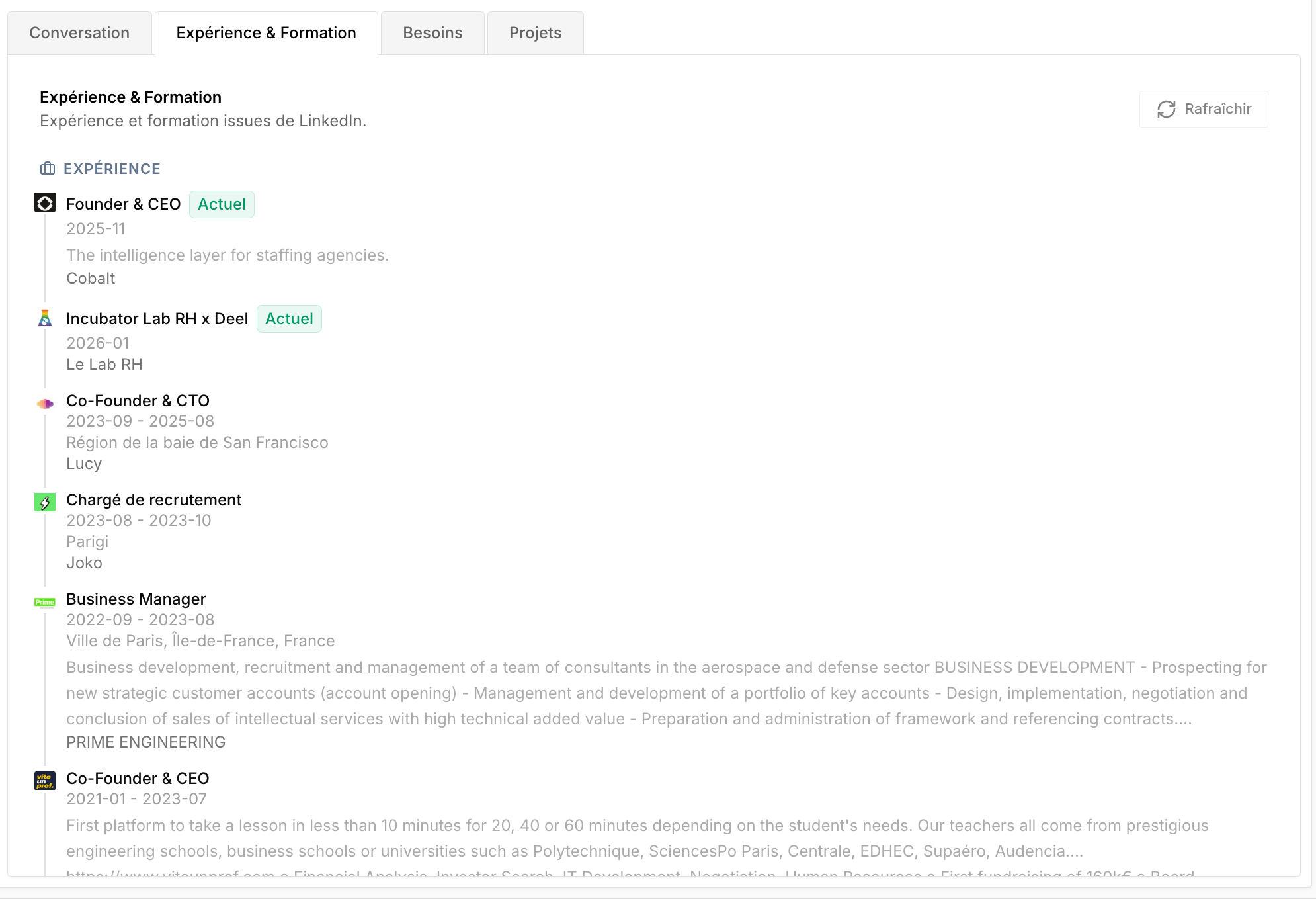
A candidate's or prospect's **education** and **experience** are now shown directly from the project's sidebar, for more context on the person you're dealing with before a conversation.
## Context on the person you're dealing with
A candidate's or prospect's **education** and **experience** are now shown directly from the project's sidebar, for more context on the person you're dealing with before a conversation.
 ## Attachments
Depending on the project type, you can **attach needs or candidates**.
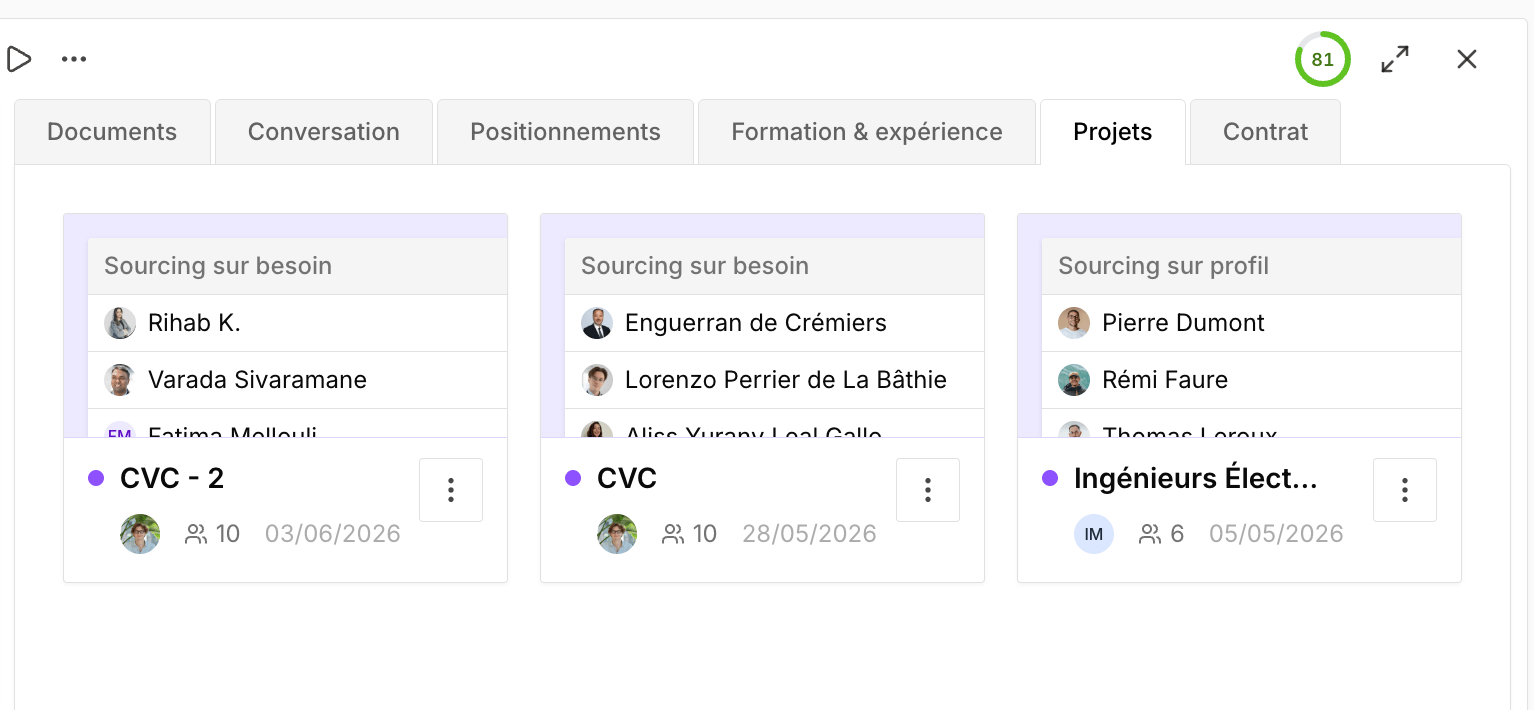
A project can also be **linked directly to CRM entities**: **candidate**, **need**, **client**, and **company** — handy for quickly finding all the projects associated with a given record.
## Attachments
Depending on the project type, you can **attach needs or candidates**.
A project can also be **linked directly to CRM entities**: **candidate**, **need**, **client**, and **company** — handy for quickly finding all the projects associated with a given record.
 You can also **attach workflows** to partially or fully automate certain project tasks. See [Workflows overview](/en/fonctionnalites/creer-premier-workflow) to learn more.
## Permissions
By default, **everyone can see and edit projects**. If you want, you can restrict this access using custom roles — see [Roles and permissions](/en/demarrer/configurer-espace).
You can also **attach workflows** to partially or fully automate certain project tasks. See [Workflows overview](/en/fonctionnalites/creer-premier-workflow) to learn more.
## Permissions
By default, **everyone can see and edit projects**. If you want, you can restrict this access using custom roles — see [Roles and permissions](/en/demarrer/configurer-espace).