> ## Documentation Index
> Fetch the complete documentation index at: https://docs.cobalt-ia.com/llms.txt
> Use this file to discover all available pages before exploring further.
# Tasks
> Manual or automatic tasks, kanban board, filters and reminders — a clear view of all your actions.
Cobalt turns every call and meeting into a clear set of action items — automatically. As soon as a meeting ends, Cobalt analyses the transcript, extracts action items, and creates tasks with full context, a suggested assignee, a priority level, and a deadline. You manage everything from a kanban board, with filters and reminders.
## Task management
### Automatic tasks
**Automatic tasks** are created by Cobalt on your behalf, from two sources:
* a **workflow** — a manual-action block automatically creates the task;
* the **transcription** of a meeting or phone call.
After a call or meeting ends, Cobalt processes the transcript in the background. It identifies commitments, follow-ups, and action items, then creates individual tasks — each one pre-filled with:
* **Context** pulled from the conversation
* **Suggested assignee** based on who was responsible in the discussion
* **Priority level**: Urgent, High, Normal, or Low
* **Suggested deadline** based on any dates mentioned
You review the generated tasks, adjust anything you need, and confirm. No manual note-taking required.
Tasks created from meetings include a link back to the meeting transcript — click it to review the full context at any time.
### Task board
Your tasks appear on a kanban board with four columns:
| Column | Purpose |
| --------------- | ------------------------------ |
| **Pending** | Tasks not yet started |
| **In Progress** | Tasks actively being worked on |
| **Done** | Completed tasks |
| **Deferred** | Tasks postponed for later |
Drag tasks between columns to update their status instantly. Every task is linked to the relevant **candidate**, **client**, or **project**, so you always have the full context one click away.
### Manual tasks
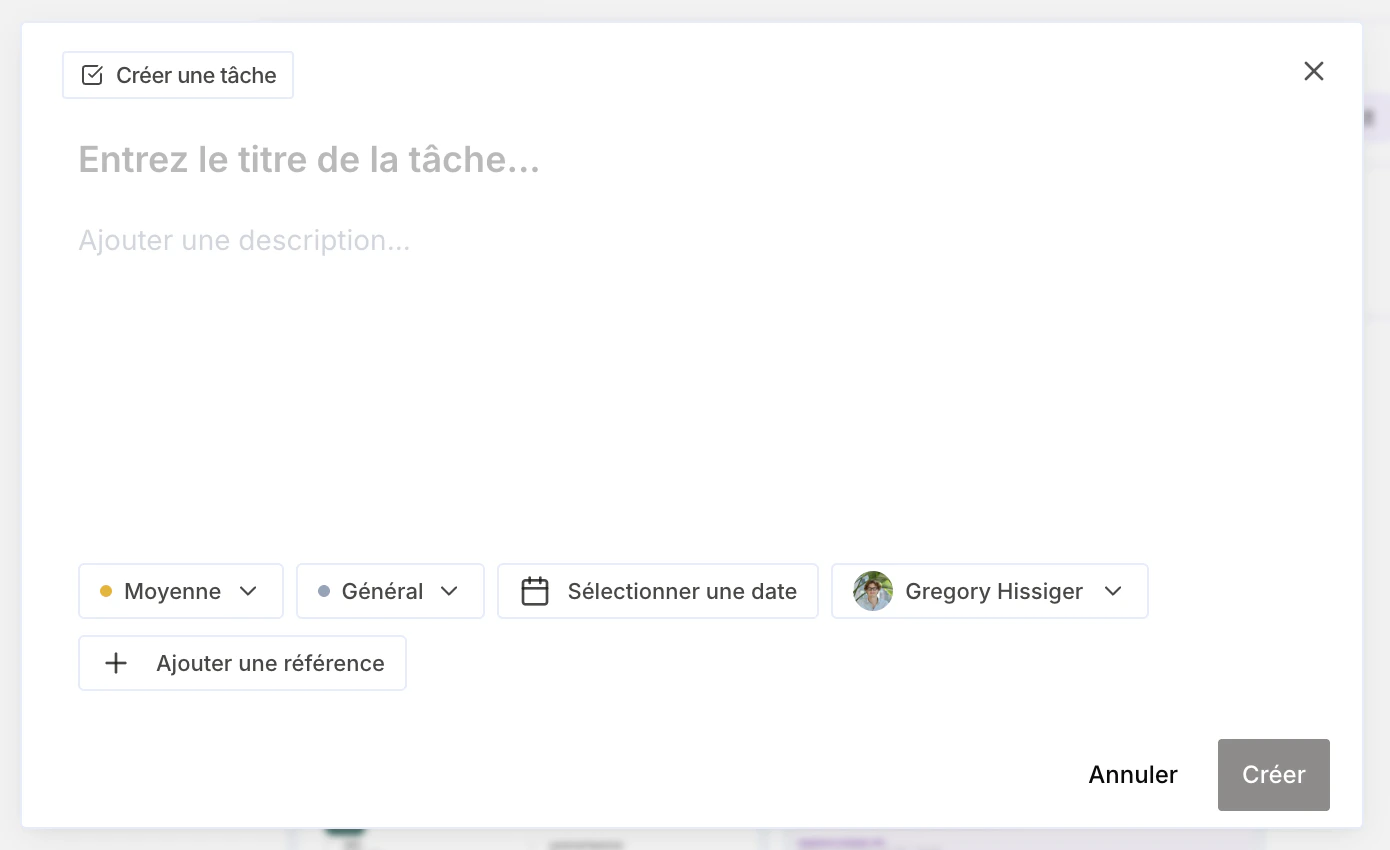
**Manual tasks** are actions you create yourself, like a to-do list (call a candidate, follow up with a client, prepare an interview…). Click **New Task** from the task board or from inside any candidate, client, or project record, then fill in the title, description, assignee, priority, and deadline.
You can also **add a reference** (a client or a candidate) to give the task context — for example "call this client in 3 weeks" linked to the client's name. The reference acts as a tag that tells you who the task is about.
 ### Filters and notifications
Use the filter bar to narrow your task board by:
* **Assignee** — see only your tasks or a team member's workload
* **Priority** — focus on Urgent or High priority items
* **Deadline** — surface overdue or upcoming tasks
* **Source** — filter by tasks created from meetings vs. calls vs. manually
Cobalt notifies the assigned team member when a task is created or reassigned, and sends a reminder when a deadline is approaching.
### Filters and notifications
Use the filter bar to narrow your task board by:
* **Assignee** — see only your tasks or a team member's workload
* **Priority** — focus on Urgent or High priority items
* **Deadline** — surface overdue or upcoming tasks
* **Source** — filter by tasks created from meetings vs. calls vs. manually
Cobalt notifies the assigned team member when a task is created or reassigned, and sends a reminder when a deadline is approaching.